
Microsoft SSO
Microsoft single sign-on for Mitimes requires an IT Admin to add and enable the SSO provider. Users will then log into Mitimes using their Microsoft account. Note that SSO is mandatory when enabled and users will not be able to log in with their usual Mitimes username and password.
Setting up SSO – IT Admin Instructions
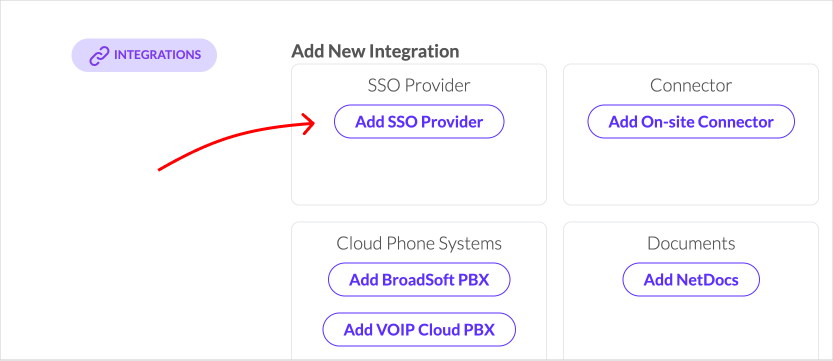
From the integrations section in IT Admin, add a new SSO provider.
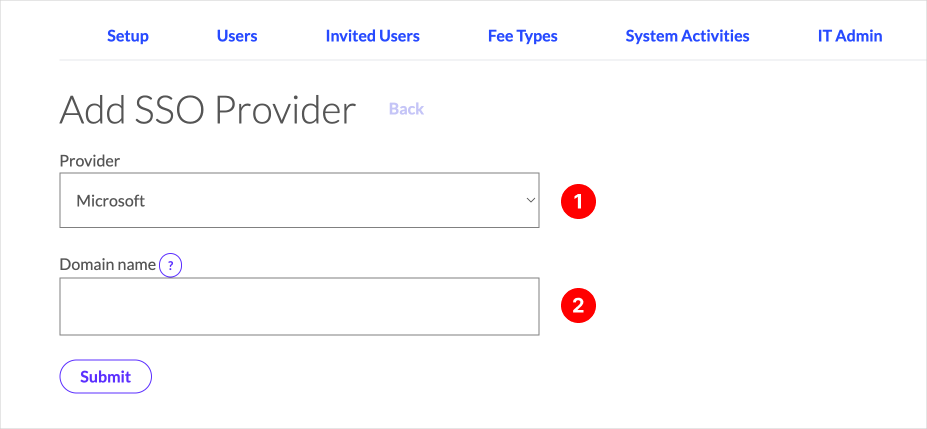
There are two (2) settings to configure on the SSO provider screen.
- From the dropdown select Microsoft aa the SSO provider.
- Enter your organisation’s domain name.
Once you have made these selections press submit.
Enable SSO. You can also allow new users to sign up to Mitimes using their Microsoft account (optional).
After enabling SSO – you will be logged out and prompted to select your own Microsoft account to log back into Mitimes.
After logging in with your Microsoft account, you will be directed back to Mitimes and will see that SSO is enabled.
Users will be directed to log in with their Microsoft account when signing into Mitimes. If they are already signed into their Microsoft account, they will just select their account but will not need to follow the usual Microsoft login process.