Recording in Minutes
Mitimes now has the option to record time in minutes
When completing a time entry, Mitimes allows user the option to record the time entry in minutes. Users can simply click the Record in Minutes checkbox to record time for that time entry in minutes instead of units.
The example below is a time entry for 6 minutes. The + and – buttons can be used to add or subtract minutes.
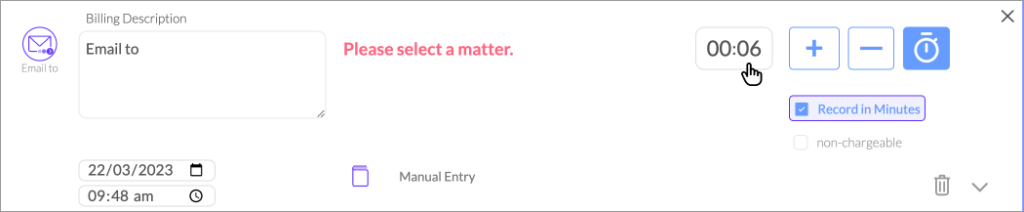
Users can also manually enter the number of minutes by clicking into the hours and minutes input box.
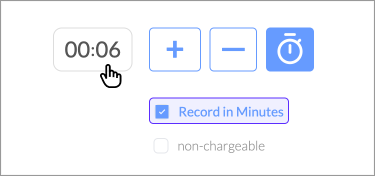
When you close out of a time entry, it will still display in units. It may display as a fraction of a unit. Most Practice Management Systems receive time in units. Mitimes generally posts time entries to Practice Management Systems in units.

Changing your default recording preference
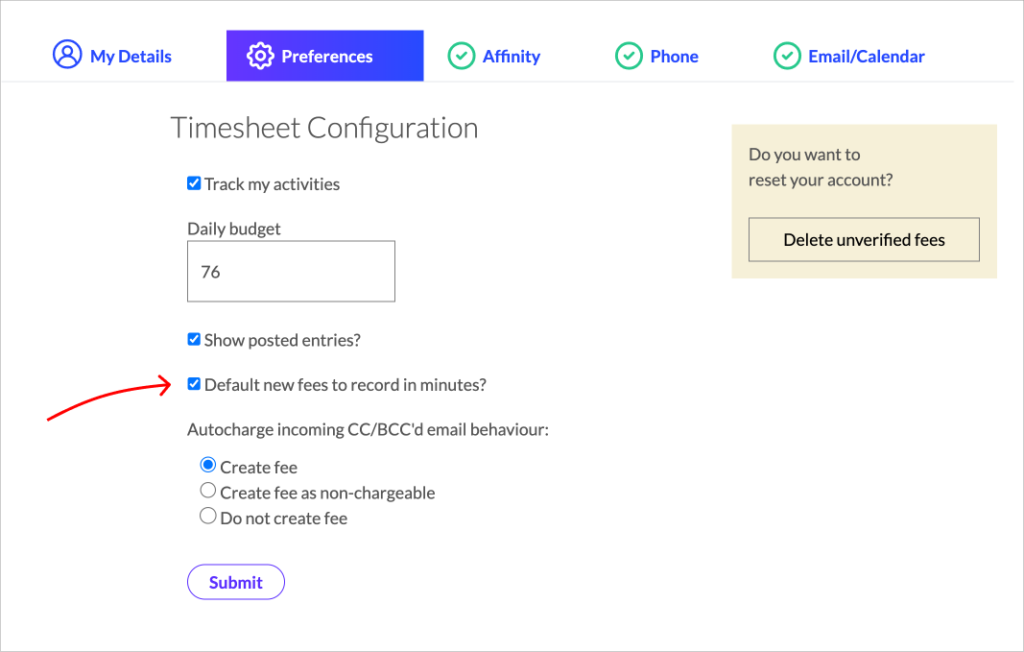
Users can toggle between recording in units and mintues at
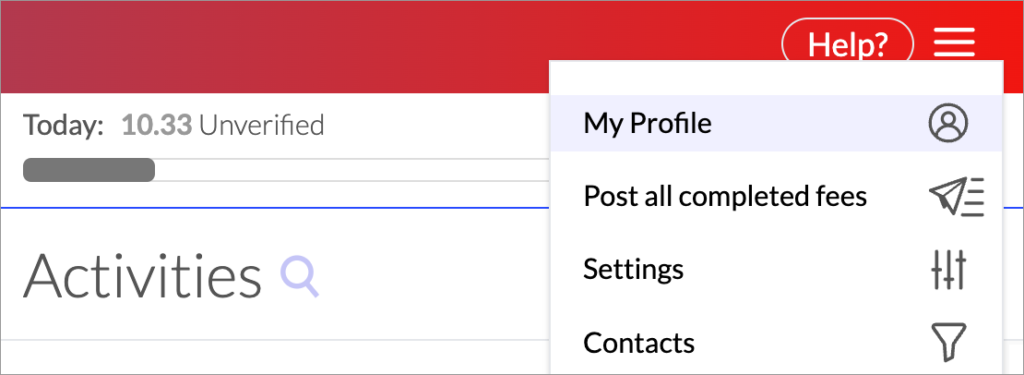
If you want your time entries to record in minutes by default, go to the Menu > My Profile > Preferences.
Users can choose to have their time entries default to record in minutes. Simple select the checkbox Default new fees to record in minutes setting in your preferences and submit.